CNE递一物流|跨境物流 就选递一
递一国际物流有限公司(简称CNE),CNE品牌成立于2003年, 公司总部位于上海,现已在义乌、广州、苏州、杭州、深圳、福州等多地拥有直属分公司。CNE注重科技投入提升行业整体效率,自主研发了先进的信息技术系统服务平台,运用大量的高科技全自动操作分拣设备,实现了服务流程的智能化、高效化与专业化。CNE服务了上万跨境电商卖家群体,现已成为中国头部跨境电商物流服务商。



递一云仓
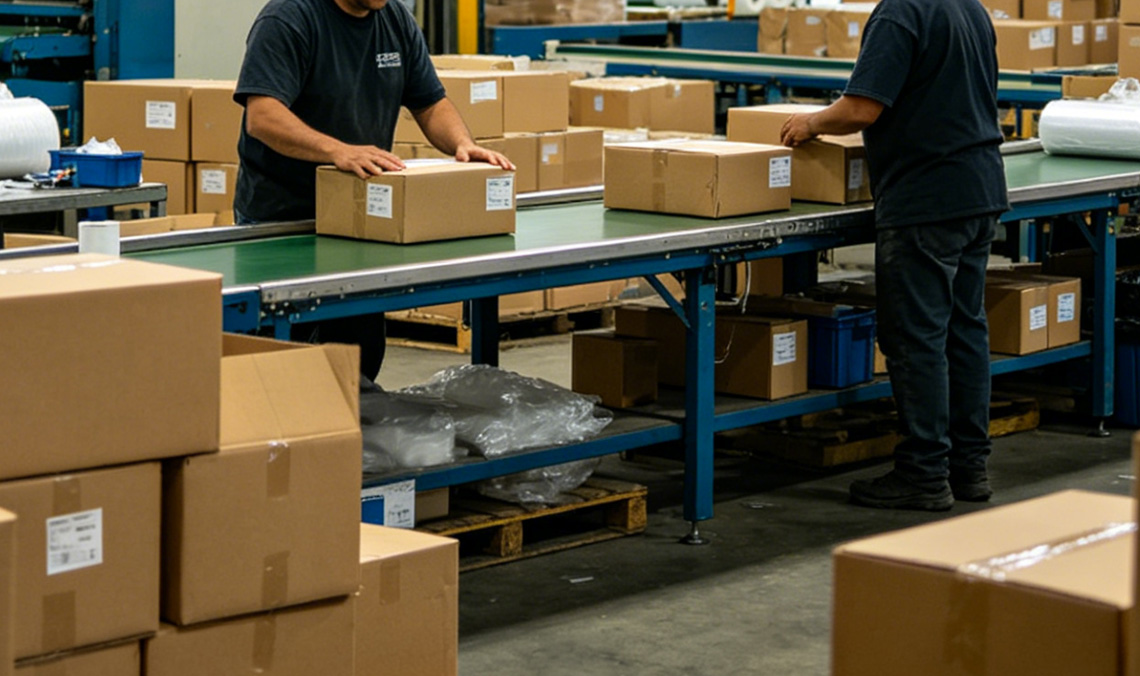
CNE递一云仓 Fulfillment by CNE(简称:FBC)是CNE依托自身专线直邮传统优势,长期跟踪跨境卖家物流痛点,创新业界现有业务模式,匠心打造的仓邮一体化跨境物流履约系统。
查看详情
自营专线服务
CNE不断提升处理效率,甄选海外本土优质合作伙伴,打造数十条专线物流解决方案,通达欧美、澳洲、巴西等地,全程可跟踪。时效稳定且兼具性价比。
英国专线
德国专线
意大利专线
西班牙专线
巴西专线
美国专线
奥地利专线
印度专线
加拿大专线
波兰专线
荷兰专线
法国专线
为什么选择CNE
主流平台官方
合作伙伴
CNE是Amazon自配送物流服务商及SPN物流服务商,也是多家全球大型电商平台及独立站官方认证合作伙伴及优质物流服务商,如:Walmart、ebay、Wish、Dhgate、TikTok、TEMU、Shopexpress、Shopline等。
稳定的国际航空
运输服务
CNE拥有IATA资质,与多家航司建立战略合作伙伴关系。仓位稳定,旺季保障!
强大的IT技术
支持
CNE提供全面的跟踪信息服务,确保您能够实时查询到最新的票件状态。您可以通过我们的官方网站进行自助查询,同时我们的信息也支持在Aitrack、17track、Aftership、Trackingmore和菜鸟·全球物流追踪等多个网站上进行查询,以便您方便地了解您包裹的最新动态。
全国主要城市
网点覆盖
CNE总部位于上海,在深圳设有总部级运营中心。全国分公司及揽收网点分公司覆盖华东华南主要城市,可提供上门揽收服务。
新闻动态
新闻公告
市场活动
行业资讯
文件下载
-027050823.jpg)
<通知> CNE部分渠道价格调整(2026年10月26日起)
您好!由于受空运成本变动和欧盟关税政策影响, 我司报价表将于10月26日0点变更(下周一),本次将调整部分渠道的价格(详情请查看报价表)。
2026-10-23
-065806424.jpg)
<通知> 关于欧盟国家2026年11月税改通知
您好!根据欧盟理事会发布的海关改革法案,2026年11月1日起,欧盟正式对所有非欧盟地区直邮欧盟的进口包裹,全面开征2欧元/税目的欧盟统一海关处理费(Union Handling Fee),叠加2026年7月1日已生效的3欧元/税目进口关税。如您对政策细节或我司相关调整存在疑问,请详询客户经理或客服人员。
2026-10-22
-065545788.jpg)
<通知> CNE价格调整及条款更新(2026年10月26日起)
您好!由于受空运成本变动和欧盟关税政策影响, 我司报价表将于10月26日0点变更(下周一),本次将调整部分渠道的价格以及进行条款更新(详情请查看报价表)。最新相关详情、报价和计抛规则等资讯请详询客户经理或客服人员。
2026-10-22

祝贺CNE递一物流荣获2025晓生排行榜跨境专线精锐企业称号
详情可点击查看:https://mp.weixin.qq.com/s/x5VB01APCI8_iCrehSfZrw
2025-05-28

2024小而美跨境卖家实战峰会 邀您快速入局破局
点击查看详情:https://mp.weixin.qq.com/s/A2Jsuvx-OCmxmzSOGqGwVg
2024-05-23

CNE递一物流蝉联“跨境物流综合实力十强企业”称号
CNE递一物流受邀出席“第七届跨境电商物流趋势峰会”,再次蝉联“跨境物流综合实力十强企业”奖项,见证跨境物流行业荣耀时刻!
2024-03-29






我们的客户都怎么说
CNE作为跨境电商物流服务商,覆盖全球100多个国家和地区,提供广泛的产品线路和最优化的跨境物流解决方案,致力于为您的全球业务提供强有力的物流支持。
上海古道商务咨询有限公司-TOMSON
CNE的欧洲线路非常稳妥。他们拥有满足承诺的交付日期的能力。不仅拥有同类型产品价格优势,而且履行定单的准确、运输延误的提前通知、对客户服务投诉采取的行动,任何物流公司,拥有这样的能力都会进化的越来越强。目前已经合作欧洲各国国家专线及Wish线上业务。

义乌潘朵电子商务有限公司-Grace
同CNE合作10年有余,共同见证彼此之间的成长。CNE一贯坚持打造精品路线的作风,开发出多条优势渠道,尤其是欧美专线。CNE为提升效率增加操作精准度,非常注重技术及设备的投入,加上强大的控仓能力,为客户提供多样化的选择。总之,做跨境物流CNE是认真的、专业的,是广大朋友们的不二选择。
